
APK files are commonly used to install Android applications outside the Google Play Store. They can be useful when an app is unavailable in a user’s region, when a particular version is needed, or when someone wants to install an app from a trusted source. However, downloading an APK is different from installing an app directly through Google Play, so Android users should take a few extra precautions.
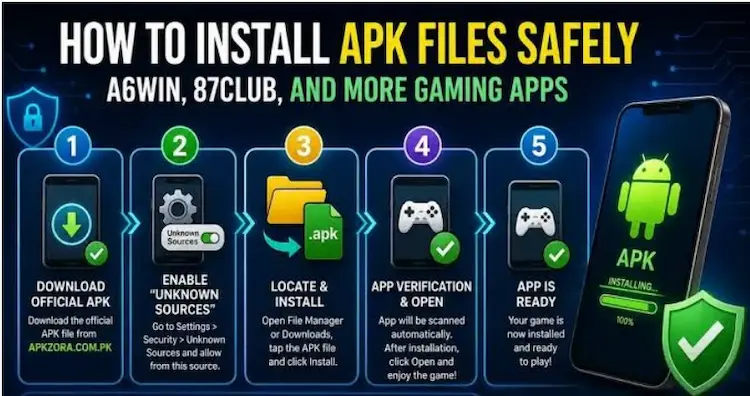
If you are new to APK files, this guide explains how to install APK files on Android in a simple way. It also covers the checks you should make before installation, how to deal with common errors, and what to do after the app has been installed.
What Is an APK File?
APK stands for Android Package Kit. It is the package format Android uses to distribute and install applications.
When you download an Android application from a website, the downloaded file may have an .apk extension. Opening that file can start the Android installation process.
An APK can be useful, but the source matters. A file from an unknown or untrusted website may contain unwanted software or request permissions that do not make sense for the app.
For this reason, users should not treat every APK download as automatically safe.
Check the APK Source Before Installing
The first step is to consider where the APK came from.
Before downloading a file, look at the website, page information, app name, version information, and available security details. Avoid downloading files from suspicious pages that use misleading download buttons or make unrealistic claims.
For example, PKRGameX provides individual information pages for Android applications and games such as FB99 and Jilievo. Users should still review the available information and their own device requirements before installing any APK.
A good rule is simple: know what you are downloading before you open it.
How to Install APK Files on Android
The exact menu names can vary between Android phones because manufacturers use different interfaces. However, the general process is similar.
1. Download the APK
First, download the required APK file from a source you trust.
Make sure the file has the expected name and .apk extension. If a download page suddenly sends you to unrelated files or applications, close the page instead of continuing.
2. Open the Downloaded File
After the download finishes, open your phone’s Downloads folder or file manager.
Find the APK file and tap it.
Android may display a security message before allowing the installation to continue. This is normal when the application comes from outside the Play Store.
3. Allow Installation From the Relevant Source
On many Android versions, you may need to allow the browser or file manager you used to download the APK to install applications from that source.
Android normally provides this permission only when it is required.
You may see an option similar to Allow from this source. If you decide that the file is trustworthy, enable the permission for that particular source and return to the installation screen.
Once installation is complete, consider turning the permission off again if you do not regularly install APK files.
4. Review the Installation Screen
Before pressing the install button, check the application name and other information shown by Android.
If something looks different from what you expected, stop the installation and investigate the file first.
This is particularly important when downloading unfamiliar applications.
5. Complete the Installation
If everything looks correct, select Install and wait for Android to finish.
Depending on the application and your phone, the process may take only a short time.
After installation, Android normally provides an option to open the application immediately.
Check App Permissions
Installation is not the final security check.
After opening an application, review the permissions it requests. Android applications can ask for access to different parts of your device, such as storage, camera, microphone, contacts, or location.
The permissions should make sense for what the application actually does.
For example, an application that has no obvious reason to access your contacts should make you question why that permission is being requested.
You can review and manage permissions through Android’s application settings. Menu names can differ depending on your phone and Android version.
Keep Your Android Phone Updated
Using a current Android version can help improve compatibility and security.
Before installing an APK, check whether your phone has enough storage and whether its Android version is compatible with the application.
You should also keep important phone security features enabled. If Android warns you about a file or application, do not simply ignore the warning without understanding why it appeared.
What If the APK Does Not Install?
Sometimes an APK will not install even when the file appears normal.
Common reasons include:
- The APK is incompatible with your Android version.
- The file download was incomplete.
- Your phone does not have enough storage.
- Another version of the application is already installed.
- The package is designed for a different device architecture.
- Android has blocked the installation because of a security setting.
- The downloaded file is damaged.
If you encounter an installation error, don’t repeatedly install random versions of the same application. First identify the actual problem.
For users checking Android game installations, pages such as R777 and CV999 can be used as examples of individual app/game information pages to review before installation.
Make Enough Storage Available
Low storage is an easy problem to overlook.
An APK may be relatively small, but the installed application can require additional space for its files, updates, or cached data.
If your phone is almost full, remove unnecessary files or applications before attempting a new installation.
Avoid deleting important personal files just to install one application. Check your storage settings first so you know what is consuming the most space.
Do Not Trust Every “Download” Button
Some websites contain multiple advertisements or misleading buttons that look like download links.
Take your time and identify the actual download option.
If clicking a button opens several unrelated pages, asks you to install another application, or starts an unexpected download, close it.
A clean download process is generally easier to understand and verify.
Is Installing APK Files Safe?
Installing an APK is not automatically unsafe. The main concern is where the file came from and what it contains.
Users should check the source, application information, requested permissions, compatibility, and Android security warnings before proceeding.
It is also useful to keep a record of which applications you install. If your phone starts behaving unusually after a new installation, you can identify recently installed applications and investigate them.
Final Thoughts
Learning how to install APK files on Android is straightforward, but safe installation requires more than simply tapping a download button.
Check the source first, confirm that the file is actually an APK, review compatibility and permissions, pay attention to Android warnings, and make sure your phone has enough storage. If something about the file or installation process looks unusual, stop and investigate before continuing.
For more Android-related information, users can also explore individual PKRGameX pages such as Go444 BDT APK and 99XO BD.
The goal should always be to understand an APK before installing it rather than installing files blindly.