Nexfy Launcher
Just Now
19.2 MB
v1.2.3
Android 6+
1 Million
Description
Android TV gives users access to many apps and streaming services, but the default home screen is not always the best fit for everyone. Some people prefer a simple layout where their favorite apps are easy to find without moving through multiple sections. Nexfy Launcher is designed for this purpose. It works as an alternative Android TV launcher and gives users more control over the appearance and organization of the home screen.
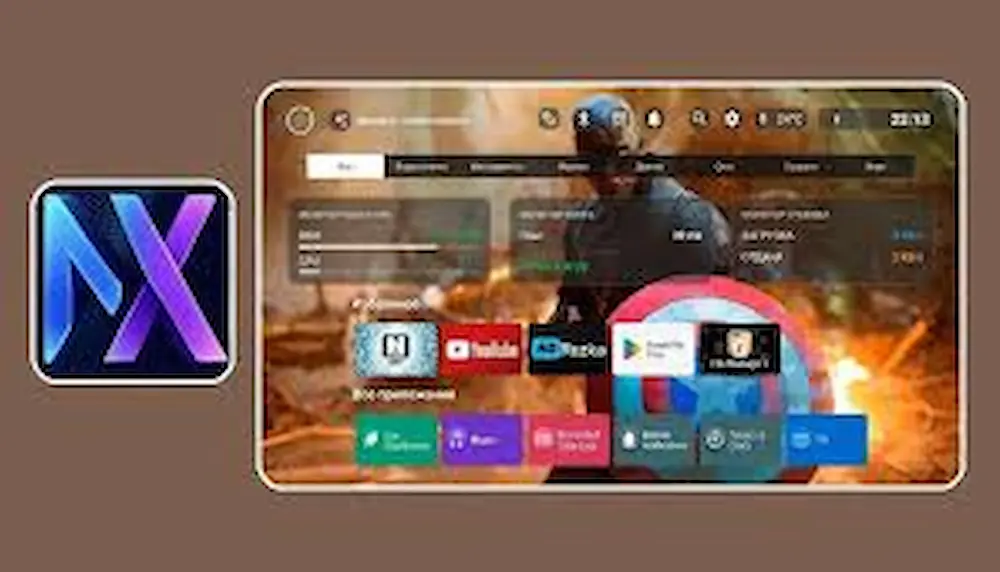
Instead of changing the basic Android TV system, Nexfy Launcher provides a different interface for accessing installed applications and useful information. It focuses on a clean design, remote-friendly navigation, wallpaper customization, weather information, and other tools that can make everyday TV use more convenient.
This guide explains what Nexfy Launcher does, its important features, installation steps, customization options, advantages, limitations, and the things users should check before using it.
What Is Nexfy Launcher?
Nexfy Launcher is an alternative Android TV application developed mainly for Android TV devices. A launcher controls the interface users see when they open the home screen. It can display installed applications, shortcuts, backgrounds, widgets, and other information.
The main idea behind Nexfy is to provide a cleaner and more flexible TV interface. Instead of depending completely on the standard Android TV home screen, users can arrange their favorite applications and customize the way information appears.
The launcher is designed around television use, so navigation can be performed with a compatible remote control. This is important because a TV interface needs to be comfortable to operate from a distance. Further more you can visit Cinedesh APK for more applications.
| Nexfy Launcher Detail | Information |
|---|---|
| App Type | Android TV Launcher |
| Main Purpose | Home-screen replacement and customization |
| Designed For | Android TV devices |
| Navigation | TV remote compatible |
| Customization | Apps, backgrounds and information |
| Additional Tools | Weather and network-related information |
| Main Focus | Simple and organized TV experience |
Why Use an Alternative Android TV Launcher?
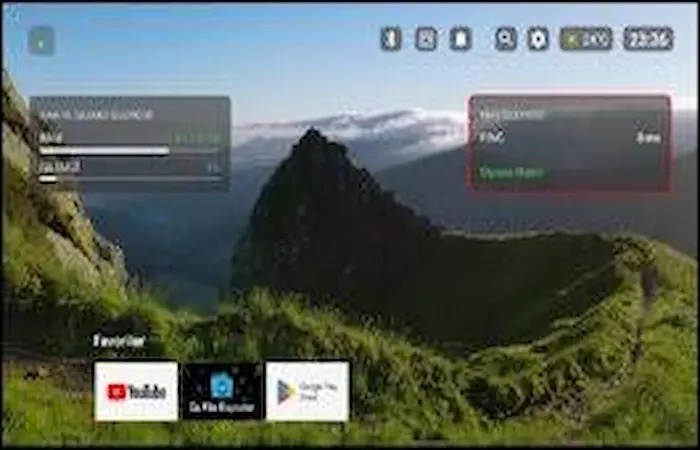
The default launcher supplied with a television or TV box may contain recommendations, advertisements, content rows, or sections that some users rarely use. While these features can be helpful, they can also make the home screen feel crowded.
An alternative launcher gives users another way to organize the interface. Instead of seeing everything on the screen, you can keep the applications and information that matter most to you.
Nexfy Launcher can be useful if you want:
- A cleaner home screen
- Easier access to frequently used apps
- More control over wallpapers
- Weather information on the TV
- Remote-friendly navigation
- Basic network monitoring information
- A less complicated interface
The best reason to use it is simple: it lets you create a TV home screen that better matches your own usage.
Main Features of Nexfy Launcher
Clean and Simple Home Screen
One of the strongest parts of Nexfy Launcher is its focus on a clean interface. A television screen can quickly become difficult to navigate when too many recommendations, shortcuts, and content categories are displayed.
Nexfy takes a more focused approach by allowing users to keep commonly used applications within easy reach. This can make everyday navigation quicker, especially when you normally use only a few streaming or media applications.
A simple interface can also make the television feel less distracting. Instead of spending time looking through different sections, users can move directly toward the application they want.
Easy Application Organization
Application organization is important when an Android TV device has many apps installed.
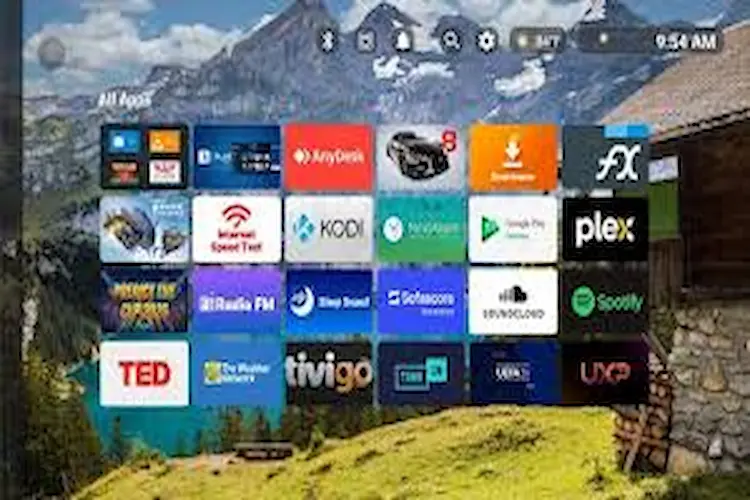
Nexfy Launcher allows users to arrange frequently used applications so they can be accessed from the main screen. This is helpful for households where a TV is used for streaming, music, media playback, browsing, and other activities.
For example, you can prioritize your entertainment applications while keeping less frequently used tools away from the main area.
Good organization also reduces the amount of scrolling required with a remote control.
Custom Backgrounds and Wallpapers
The appearance of the home screen can be changed through wallpaper options. Users who do not like the standard Android TV background can choose another visual style.
A suitable wallpaper should not make application names or icons difficult to see. For this reason, simple or darker backgrounds can sometimes provide a more comfortable viewing experience.
Wallpaper customization is a small feature, but it can make the interface feel more personal.
Weather Information
Nexfy Launcher can also display weather information on the home screen. This means users may be able to check basic weather details without opening a separate application.
This can be useful when the television is placed in a living room or bedroom where people regularly want quick information while watching TV.
Weather accuracy and available information can depend on the configured provider, location, and current application version.
Voice and Chat Features
Another feature area is voice-based interaction and chat assistance. Voice controls can be useful on a television because typing long searches with a remote can be uncomfortable.
Instead of entering everything manually, supported voice functionality can make certain tasks easier.
The exact functions available may depend on the device, application version, permissions, and configuration, so users should check the available options on their own TV.
Network Monitoring
Internet performance has a major effect on streaming quality. Slow Wi-Fi, high latency, or unstable connections can result in buffering and poor video quality.
Nexfy Launcher includes network-related information such as traffic and ping monitoring. These tools can give users a quick indication of their connection status.
However, network indicators should not be treated as a complete internet diagnostic tool. Streaming problems can also come from the router, internet provider, server, Wi-Fi interference, or the streaming application itself.
Remote Control Support
A TV launcher needs to work properly with remote controls. Nexfy Launcher is designed for Android TV navigation rather than touchscreen interaction.
Users can normally move through the interface using directional buttons and other standard remote controls supported by their device.
Some advanced remote actions may require Android accessibility access. If the application asks for additional permissions, review them carefully and only enable access that you understand and need.
Nexfy Launcher Installation Guide
Installing an Android TV launcher is generally straightforward when it is available through a trusted application source.
Before installing, make sure your TV or Android TV box is compatible with the application and has enough free storage.
How to Install Nexfy Launcher
Follow these basic steps:
- Open the application store on your Android TV device.
- Search for Nexfy Launcher.
- Check the application name and developer details.
- Read the current app description and permission information.
- Select the installation option.
- Wait for the installation to finish.
- Open Nexfy Launcher from your applications.
- Follow the initial setup instructions.
If the launcher is available through Google Play on your device, using the store is generally preferable to downloading an APK from an unknown website.
How to Set Up Nexfy Launcher?
After installation, the first step should be checking the basic home-screen layout. Do not immediately add every available widget or shortcut. Start with the applications you use most often.
Place your regular streaming, video, music, or media apps in easy-to-reach locations. Less important applications can remain in secondary areas.
You can then choose a wallpaper and adjust the information displayed on the home screen.
If you use the weather feature, configure the correct location and available provider. Users interested in connection performance can also explore the network information tools.
The setup process may vary between Android TV manufacturers. Some televisions place restrictions on changing the default launcher, while others may allow alternative launchers more easily.
How to Customize the Home Screen?
Arrange Frequently Used Apps First
The home screen should contain the applications you use regularly. Putting rarely used apps in the main area can make navigation unnecessarily complicated.
A useful arrangement might include:
| Home Screen Area | Suggested Apps |
|---|---|
| Main Section | Frequently used streaming apps |
| Secondary Section | Music and video players |
| Utility Area | Browser and file manager |
| Less Used Apps | Apps opened occasionally |
| Information Area | Weather or network tools |
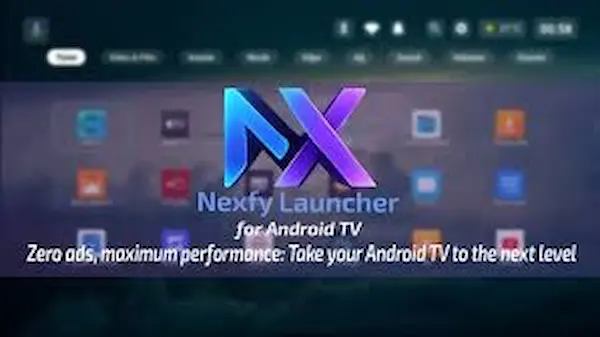
The exact arrangement depends on your own usage, but keeping things simple usually produces the best experience.
Choose a Practical Wallpaper
A beautiful wallpaper is not always the most practical option. Very bright or detailed images can make text and icons harder to read.
Choose a background that provides enough contrast for the interface. This is particularly important on large screens where you may be viewing the TV from several meters away.
Avoid Unnecessary Widgets
Extra information can look useful at first, but too many widgets can make a launcher feel crowded again.
Only keep features that you actually use. If you rarely check weather information or network statistics, there may be little reason to keep those sections prominent.
Nexfy Launcher on Low-End Android TV Boxes
Some Android TV boxes have limited RAM, older processors, or small amounts of internal storage. On these devices, a heavy interface may make navigation feel slower.
Nexfy Launcher is intended to be lightweight, which may make it an option for users who want a simpler interface. However, a launcher alone cannot solve every performance problem.
If an Android TV box is slow, check other possible causes as well.
Common Performance Problems
- Too many installed applications
- Very little free storage
- Too many background processes
- Overheating
- Old Android software
- Poor-quality hardware
- Unstable internet connection
Removing applications that you no longer use and keeping enough free storage can help maintain better overall performance.
Nexfy Launcher Compatibility
Compatibility is one of the first things to consider before changing the default home screen.
Android TV devices are not all identical. Different manufacturers can use different Android versions, system interfaces, remote-control configurations, and restrictions.
| Compatibility Factor | Why It Matters |
|---|---|
| Android Version | Determines which app versions can run |
| TV Manufacturer | System restrictions can differ |
| TV Box Hardware | Affects overall performance |
| Remote Control | Determines navigation support |
| Available Storage | Needed for installation and updates |
| Permissions | Some features may require additional access |
If the launcher does not behave correctly on your device, returning to the original home-screen application may be necessary.
Advantages of Nexfy Launcher
Nexfy Launcher has several practical advantages for Android TV users.
Simple Interface
The cleaner design can make it easier to locate applications without dealing with unnecessary sections.
Better App Access
Frequently used apps can be organized around the main home screen, reducing the amount of remote navigation required.
Personalization
Wallpaper and layout options allow users to create a home screen that feels different from the standard Android TV interface.
Useful Information
Weather and network-related information can be convenient for users who want quick details without opening separate applications.
TV-Friendly Navigation
The launcher is designed for television hardware and remote-based interaction instead of depending on touchscreen controls.
Possible Limitations
Alternative launchers also have limitations, and Nexfy Launcher is not necessarily suitable for every Android TV device.
Some televisions may restrict third-party launchers or make it difficult to permanently replace the default interface. Remote-control behavior can also differ between devices.
Certain features may require additional permissions, while other functions may depend on the Android version or application update.
Users who already like their television’s default home screen may also find that installing another launcher does not provide enough benefit to justify changing the interface.
Is Nexfy Launcher Safe?
Safety depends largely on where the application is obtained and which permissions are enabled.
The safest approach is to use a trusted application source and check the current developer information before installation. Avoid downloading modified APK packages from random websites because you cannot always know whether the package has been changed.
Users should also review permissions carefully. A launcher may require certain access for advanced functionality, but you should understand why that access is being requested.
Keep the following points in mind:
- Use a trusted download source.
- Check the current application listing.
- Review requested permissions.
- Read the available privacy information.
- Keep Android TV updated.
- Avoid modified or suspicious APK files.
- Disable permissions you do not need when possible.
Privacy and permission details can change when an application is updated, so it is better to check the latest information rather than relying only on older descriptions.
Tips for Getting Better Results
A launcher works best when the home screen is kept organized. Start with a small number of applications and add more only when necessary.
If the interface feels slow, check the device’s storage and background applications before assuming the launcher is responsible.
For a comfortable setup, use a readable wallpaper, keep important apps close to the main section, and remove shortcuts that you never use.
If you experience remote-control problems, check the Android TV settings and the permissions requested by the launcher before changing advanced system options.
Frequently Asked Questions
What is Nexfy Launcher?
Nexfy Launcher is an alternative home-screen application designed mainly for Android TV devices. It provides another interface for organizing applications and accessing useful information.
Can Nexfy Launcher replace the default Android TV home screen?
It can work as an alternative launcher, but the exact behavior depends on the Android TV device and its system restrictions.
Does Nexfy Launcher support remote controls?
Yes, it is designed around Android TV navigation and supports remote-based interaction on compatible devices.
Can I change the wallpaper?
Yes. The launcher provides background customization options so users can personalize the appearance of the home screen.
Does it provide weather information?
Weather information is one of the features available through the launcher, although the exact data and provider options can depend on the current version and configuration.
Final Thoughts
Nexfy Launcher is a useful option for Android TV users who want more control over their home-screen experience. Its main appeal comes from a cleaner interface, better application organization, customizable backgrounds, weather information, network tools, and remote-friendly navigation.
It can be especially useful for people who feel that their default Android TV interface is too crowded or difficult to navigate. At the same time, users should not expect a launcher to solve hardware, storage, overheating, or internet problems.
Before installing Nexfy Launcher, check compatibility with your television or Android TV box, review the latest permissions, and use a reliable source for installation. Once installed, keep the home screen simple and arrange only the features you actually use. This approach can make the overall Android TV experience faster to understand and more comfortable for everyday use.
Download links
How to install Nexfy Launcher APK?
1. Tap the downloaded Nexfy Launcher APK file.
2. Touch install.
3. Follow the steps on the screen.